(Jobs > Jobs Analysis > WIP Value Analysis)
Use this screen to analyze your Work in Process (WIP) values with drill-through access to the underlying transaction details. The WIP Value Analysis screen is always calculated as of today’s date and does not provide a historical as-of-date view.
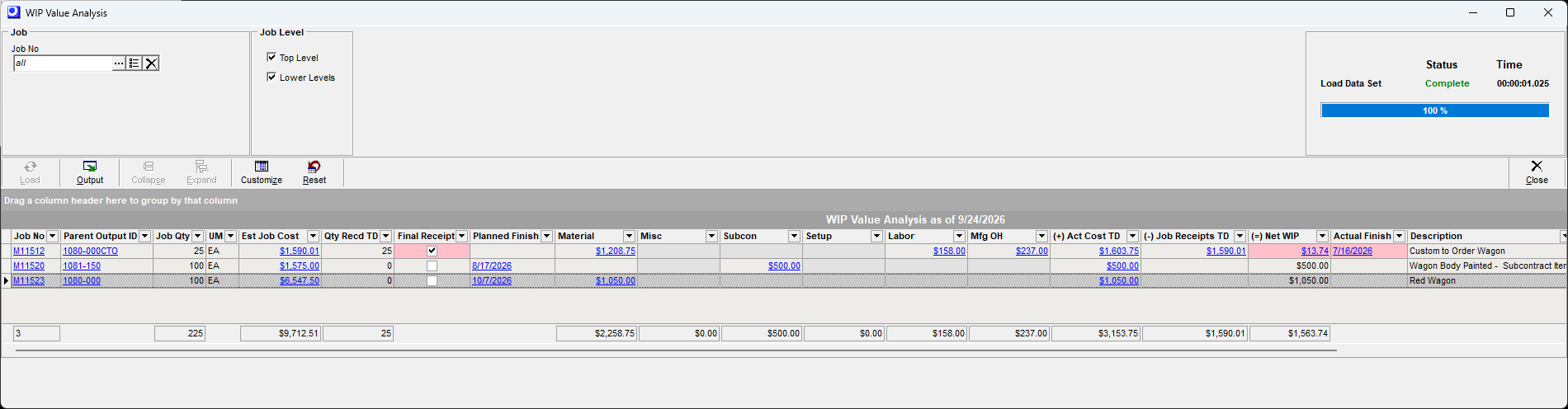
The grid will display your Finished Jobs on top with the Net WIP and Actual Finish date highlighted in Red as a reminder to promptly Close these Jobs.
Jobs must be Closed in a timely manner to auto-reconcile WIP
Changing a Job from FINISHED to CLOSED (in Job Control Panel - Close Jobs screen) is a required step to auto-reconcile your Work in Process account. When the job is closed, any difference between total job receipt cost and job input costs is posted to your WIP Adjustments (Cost of Sale) account. A common mistake customers make is to not Close jobs that have large variance values. The WIP Adjustment postings are required to balance you your overall cost of sales in the system. You must always Close Jobs and you should aspire to closing Jobs as close to your Finish date as possible.
Link:


Screen Details
Selection Filters
Optionally use the selection filters prior to loading your data set.
Job No
Select all, one or some Job Numbers.
Job Level
Chose to display Top Level or subassembly Lower Level manufactured items.
Buttons
Load
Click this button to load the dataset in the grid.
Output
Click this button to output the grid contents using a variety of filtering and sorting options. You can print this report or output to Excel
Link:

Collapse, Expand
The grid supports a drag and drop grouping of data.
Customize
You can customize the fields that display in the grid.
Reset
You can Reset the grid display to the default format.
Grid Fields
All jobs with transactions and a status of ‘RELEASED’ or 'FINISHED' are listed in the grid.
Job No
Job Number with live link to the Jobs module.
Parent Output ID
The primary output ID for this Job with a live link to the Bill of Manufacturing screen.
Job Qty, UM
Job Quantity and unit of measure
Est Job Cost
Total Estimated Job Cost with live link to the Job Inquiry > Est Job Costs tab.
Qty Recd TD
Quantity of the primary output that has been receipted to date.
Final Receipt
This check box identifies the final receipt for this output item.
▪FINISHED status Jobs (Red Shading - Need to Close) - If this Job has been marked as Final Receipt and has an Actual Finish Date, this Job must be Closed in the Jobs >Job Control Panel > Close Jobs screen.
▪RELEASED status Jobs (Yellow Shading - Needs Review) - If this Job is marked Final Receipt and is still in RELEASED status, the Job Inquiry should be reviewed to ensure that all transactions have been recorded. The Job must then be manually Finished in the Jobs > Job Control Panel > Released Jobs > Job Status Override button, and then immediately Closed in the Jobs > Job Control Panel > Job Close screen.
Planned Finish
This is the planned Finish Date with a live link to the Job Schedule screen. This field will be blank if the Job is in FINISHED status.
Material
Costs based on Job Issues of stock items at inventory cost.
Misc
Costs based on Job Issues of descriptors at Job estimated cost.
Subcon
Costs based on PO Receipt costs and subsequent auto Job Issue of subcontract lines generated from Subcon routings.
Setup, Labor, MfgOH
Job Labor transactions performed at work center shop rates for Setup, Labor and MfgOH.
Act Cost TD
Total work in process costs for this job with live link to the Jobs > Job Inquiry > Job Costs > Summary tab.
Job Receipts TD
Total of all Job Receipts of Outputs to date with a live link to Jobs > Job Inquiry > Job Costs > Outputs tab.
Net WIP
All input costs less all receipt values to date with a live link to Jobs > Job Inquiry > Job Costs > WIP Balance tab. If this cell is shaded in red this indicates that the Job is Finished and should be Closed. The Net WIP summary value should tie down to your Work in Process balance account in the General Ledger (make sure to Batch Post all transactions).
Actual Finish
This will only have a value if the Job is in FINISHED status. There is a live link to the Jobs > Job Control Panel > Close jobs screen. The red shading indicates that this Job should be Closed.
Description
This is the Job description.
CTO Customer, CTO Job Number
Will have values for CTO Jobs in process.
Job Status
This is the status of the Job with a live link to the Job Control Panel screen.
▪FINISHED status Jobs (Red Shading - Need to Close) - If this Job has been marked as Final Receipt and has an Actual Finish Date, this Job must be Closed in the Jobs >Job Control Panel > Close Jobs screen.
▪RELEASED status Jobs (Yellow Shading - Needs Review) - If this Job is marked Final Receipt and is still in RELEASED status, the Job Inquiry should be reviewed to ensure that all transactions have been recorded. The Job must then be manually Finished in the Jobs > Job Control Panel > Released Jobs > Job Status Override button, and then immediately Closed in the Jobs > Job Control Panel > Job Close screen.